AI Image Classification Web App
Project Phases
Imports
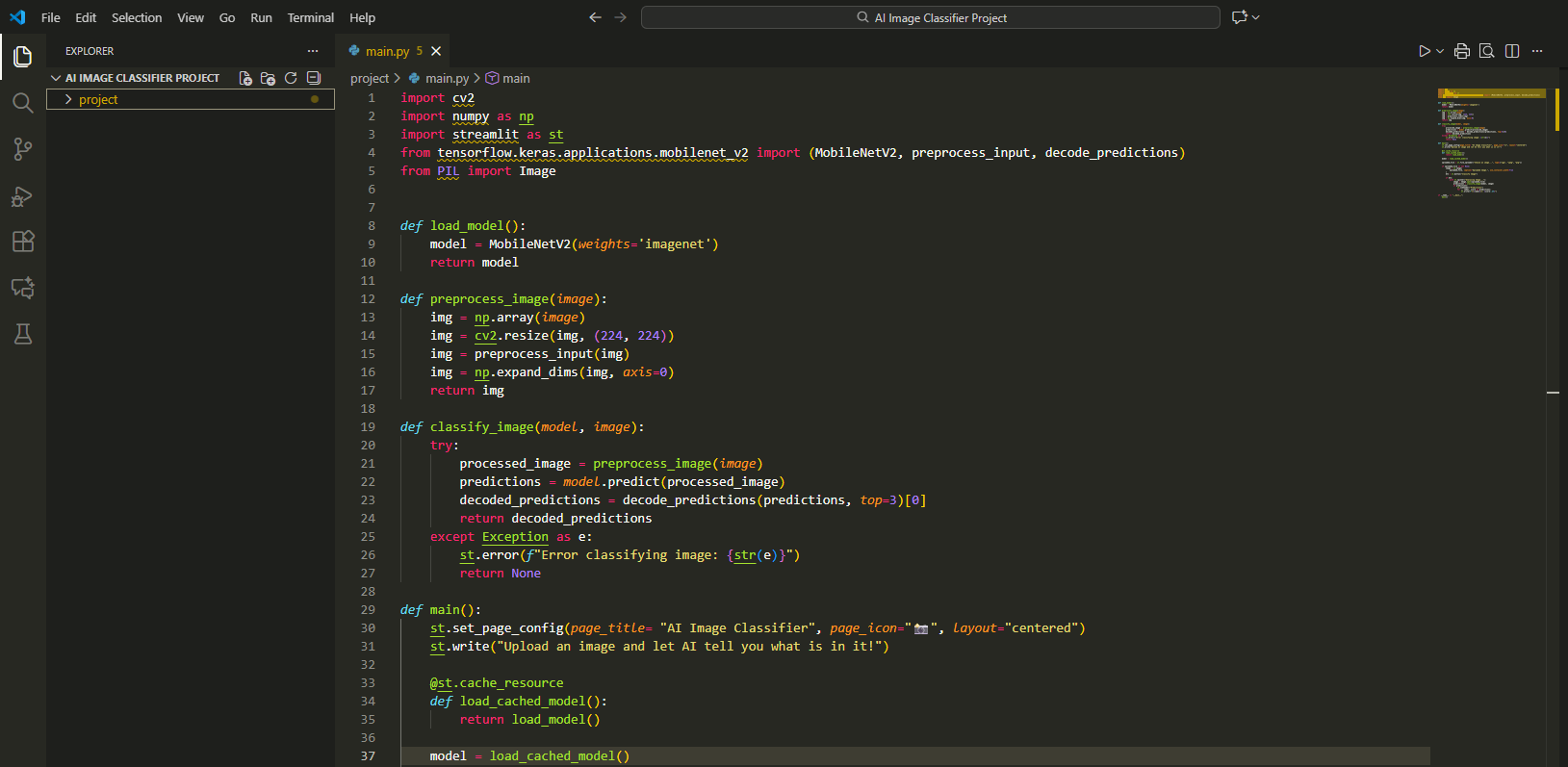
The project begins by importing essential libraries such as OpenCV, NumPy, and PIL to support image handling, resizing, and array manipulation.
TensorFlow’s MobileNetV2 model, along with its preprocessing and decoding utilities, is imported to enable deep-learning inference using pretrained ImageNet weights.
Streamlit is included to provide a clean and interactive web interface for running the image classifier in a browser.
Model Loading
A dedicated function loads the MobileNetV2 model with pretrained ImageNet weights, ensuring the application has immediate access to a high-performance, lightweight neural network.
The function returns the initialized model so that it can be reused throughout the application without repeated loading.
Preprocessing Step
The preprocessing function converts uploaded images from PIL format into NumPy arrays for compatibility with OpenCV and TensorFlow.
Images are resized to 224×224 pixels, matching the input dimensions expected by MobileNetV2.
Pixel values are normalized using the model’s required preprocessing method, ensuring that inference matches the network’s training conditions.
The image array is expanded along a new batch dimension so it can be passed into the model as a proper input tensor.
Model Prediction Process
A classification function handles the full prediction cycle by preprocessing the image and passing it through the MobileNetV2 model.
The model outputs raw probabilities that are then decoded into human-readable class labels and confidence scores.
The function gracefully handles errors, ensuring that any issues during classification are surfaced clearly in the Streamlit interface.
Streamlit App Interface
The main function configures the Streamlit page with a title, icon, and centered layout to create a simple and appealing UI.
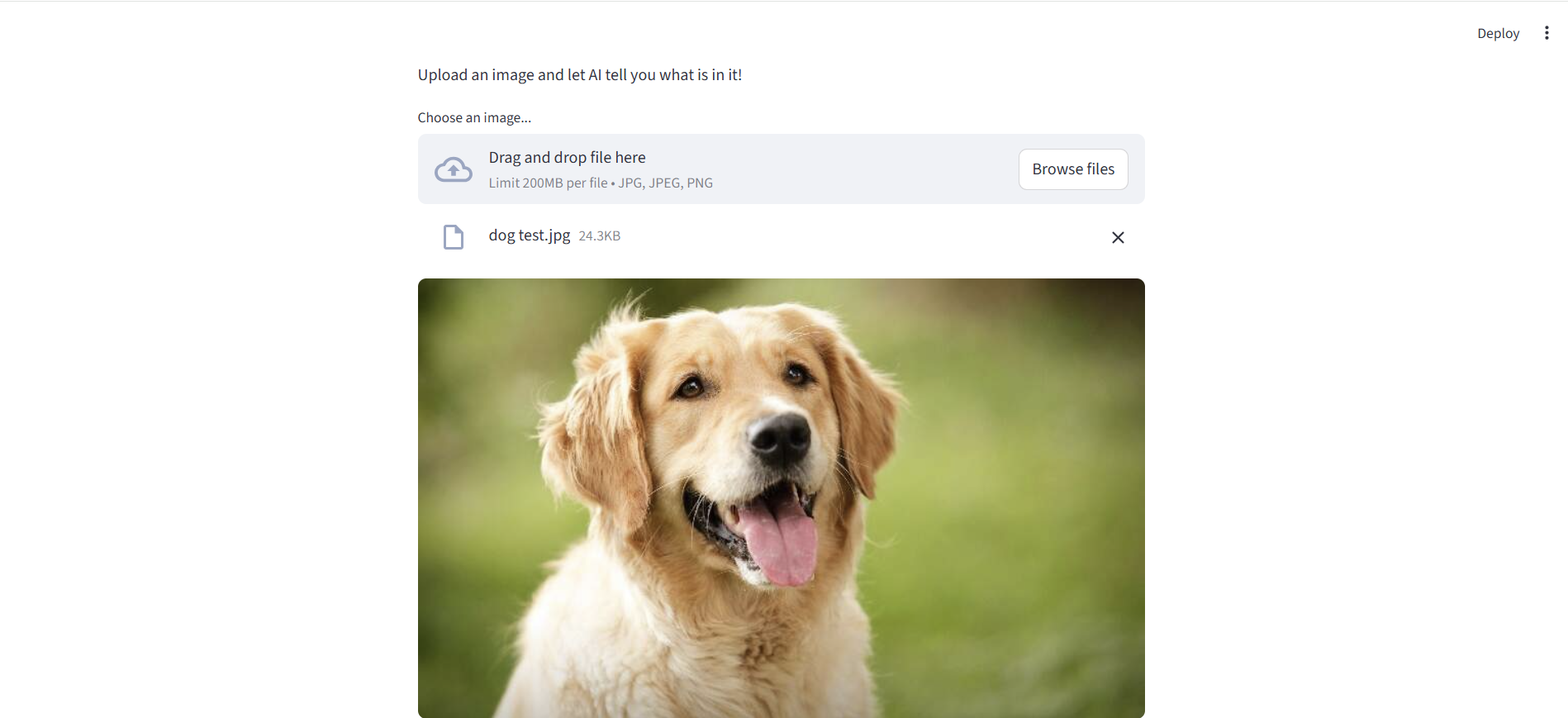
A short description is displayed to explain the purpose of the application and guide users through the workflow.
Cached Model Loader
Streamlit’s resource caching mechanism is used to load the model once and reuse it across multiple interactions, significantly improving performance and reducing startup time.
File Upload Section
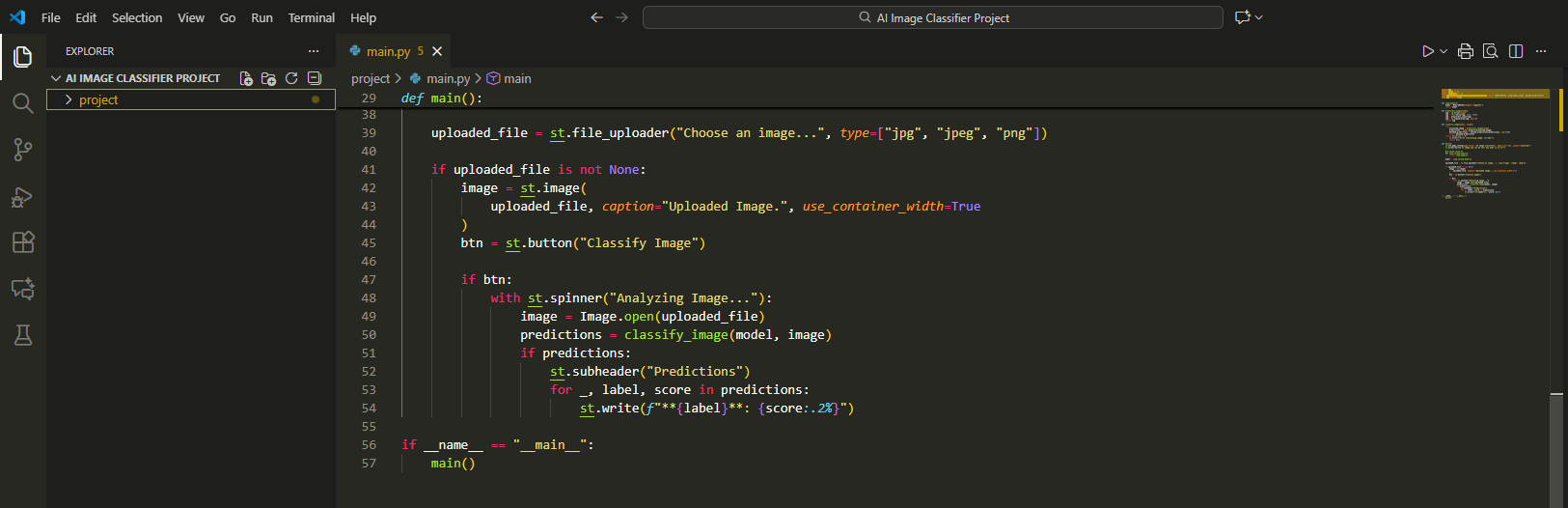
A file uploader widget allows users to submit images in JPG or PNG formats directly through the browser.
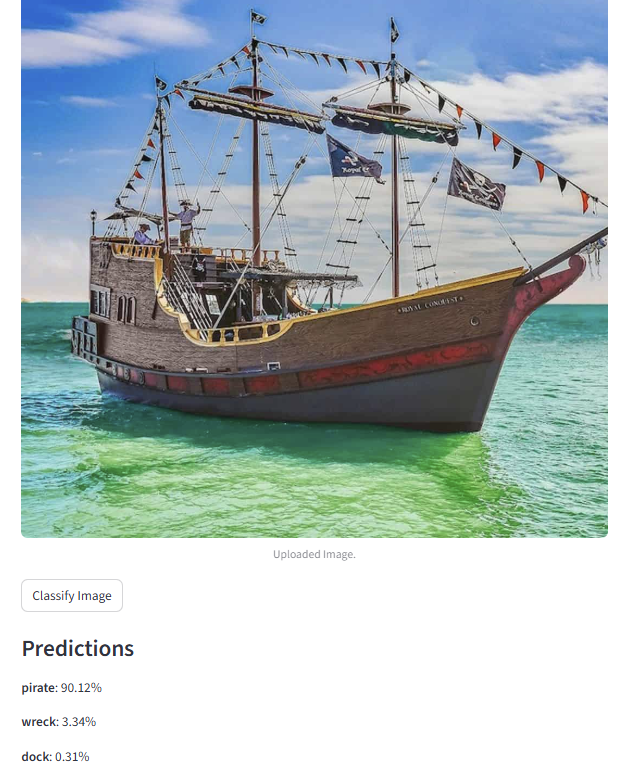
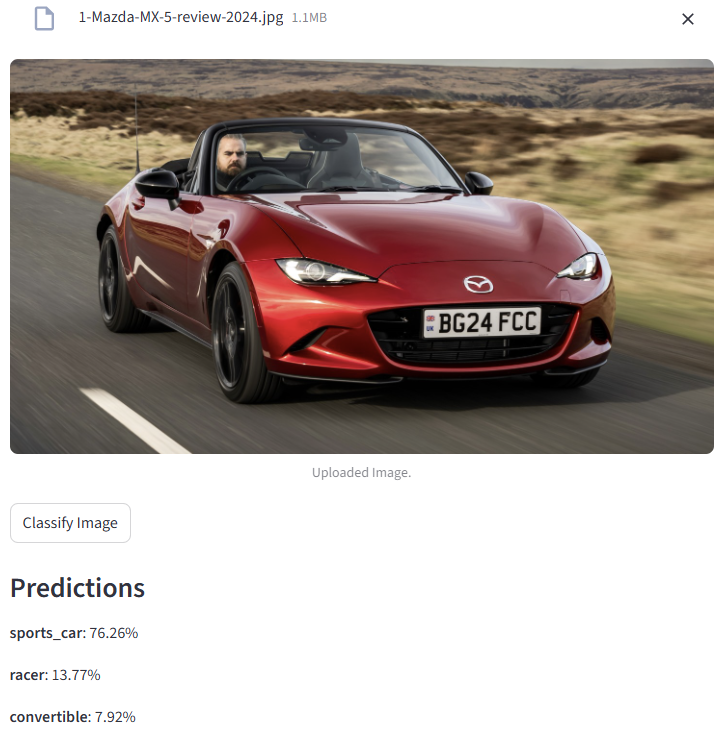
Once an image is uploaded, it is immediately displayed on the page to confirm successful submission.
Image Display and Interaction
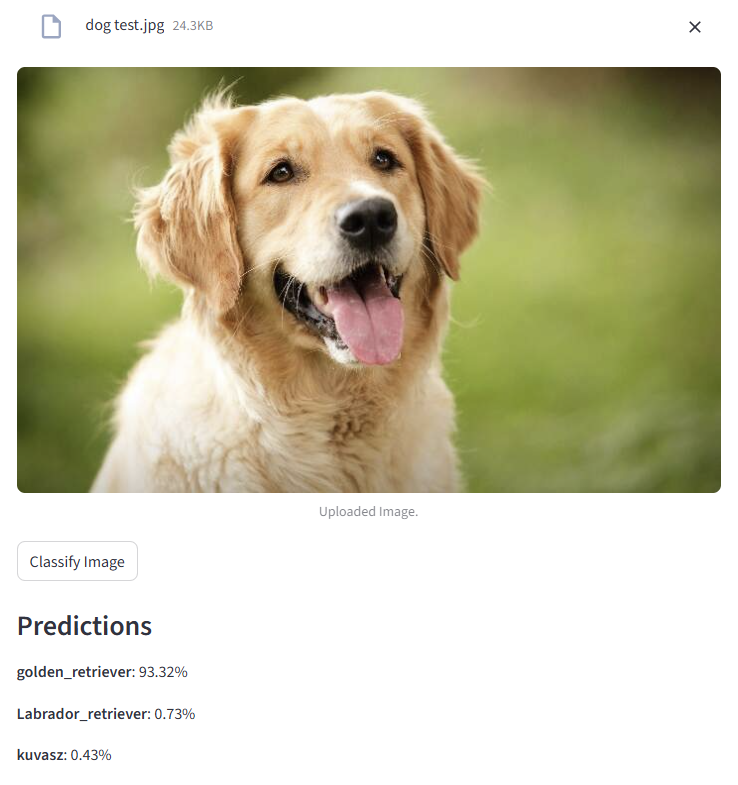
The interface provides a “Classify Image” button that triggers the prediction process only when pressed, giving users control over when inference begins.
A loading spinner is shown during analysis to indicate that the model is actively processing the image.
Prediction Output
After classification, the application displays a “Predictions” header followed by the top three predicted object labels and their corresponding confidence percentages.
Each prediction is presented in a clean, readable format to help users interpret what the model recognized in their image.
Application Execution
A standard Python entry point ensures the Streamlit app runs only when the file is executed directly, keeping the code clean and modular.